
Hot

AnyRec Screen Recorder
Capture every moment. Record like a pro.
Secure Download
How to Set Up OBS for Game Audio Capture with No Effort

Game audio capture on OBS Studio has always been a popular feature. If you want to record gameplay, game audio should never be left behind, as it plays a significant role in creating an immersive gaming experience, from background music to real-time sound effects and in-game dialogue. While it seems to be easy, many players may find that their recordings have no game audio included. But don't worry; this guide explains how to capture game audio using OBS and explores reliable alternatives.
Guide List
Detailed Steps to Capture Game Audio Using OBS Studio The Best Alternative to OBS Studio for Game Audio Capture Other Options for Game Audio Capture Apart from OBSDetailed Steps to Capture Game Audio Using OBS Studio
Before recording game audio, OBS Studio needs to be configured correctly. Otherwise, you may still find game audio not working on your recordings. You can follow the proper steps below to ensure that background music, sound effects, and in-game voices are recorded without lag or sync issues during gameplay recording.
Step 1.Launch OBS and click the "Add" button under the "Sources" tab. Click the "Audio Output Capture" button.
Step 2.Click the "Add Existing" button and then the "Desktop Audio" button. Click the "OK" button.
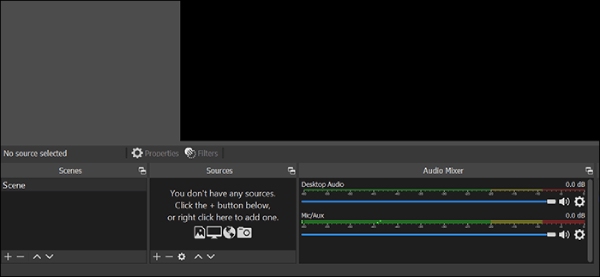
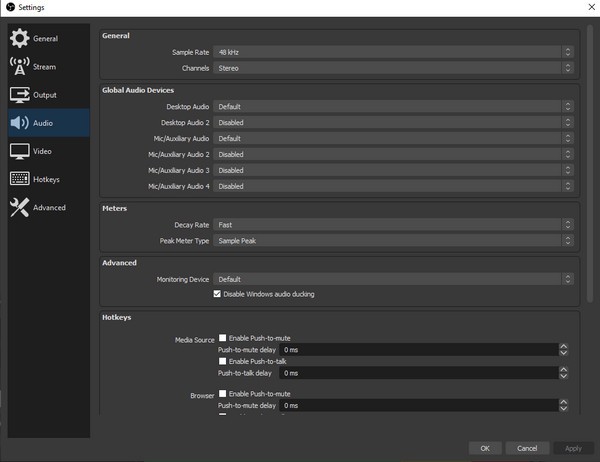
Step 3.Now, you can click the "File" button and open the "Settings" tab to adjust your audio settings. Click the "Audio" button and then the "Desktop Audio to Default" button to capture game audio only within your OBS.
Step 4.After customizing all the recording settings as you want, click the "OK" button to save the changes.
Step 5.To start recording game audio using OBS Studio, click the "Start Recording" button under the "Controls" tab.
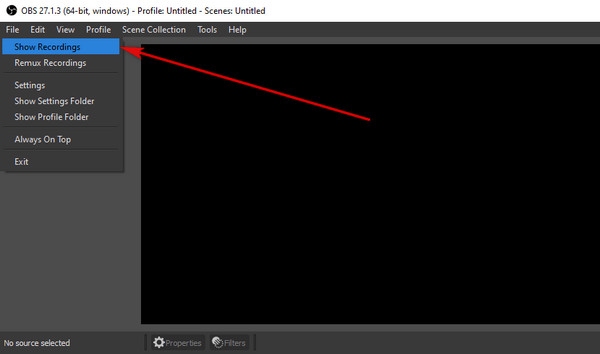
Step 6.If you want to check the recorded content, click the "Show Recordings" button under the "File" tab.
The Best Alternative to OBS Studio for Game Audio Capture
While OBS Studio is powerful, it may feel complex for users who only need to record game audio. Its complicated interface and settings will make beginners feel completely confused. If you want to record game audio in OBS Studio's quality but in a simple way, you can rely on AnyRec Screen Recorder. It allows you to record system audio directly, ensuring that in-game music and sound effects are captured clearly.
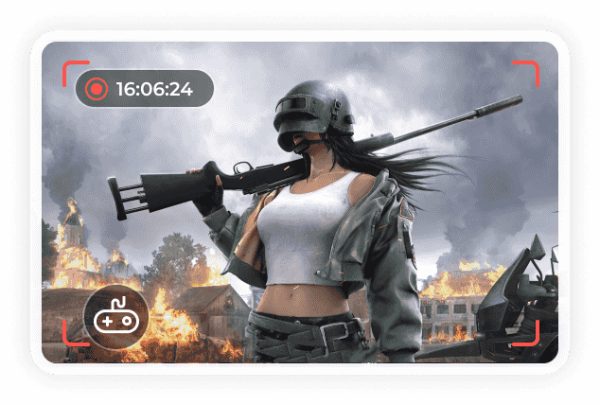
AnyRec Screen Recorder also delivers stable performance with minimal CPU usage, which helps avoid audio drops during gameplay. This feature makes sure that even a low-end PC can run and record gameplay with game audio smoothly. For users who want a straightforward and reliable way to capture game audio, AnyRec provides an efficient alternative to OBS.

Record the audio content according to the original quality of the game.
Edit the game audio recorded before saving it on your device.
Support simultaneous recording of gameplay along with game audio.
Export the recorded game audio in the format you need.
Secure Download
Secure Download
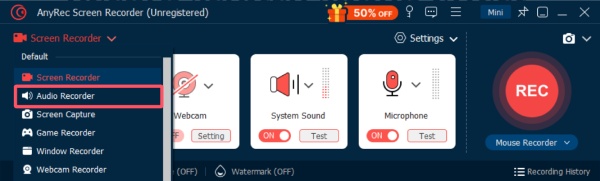
Step 1.Launch AnyRec Screen Recorder and click the "Screen Recorder" button to click the "Game Recorder" button.
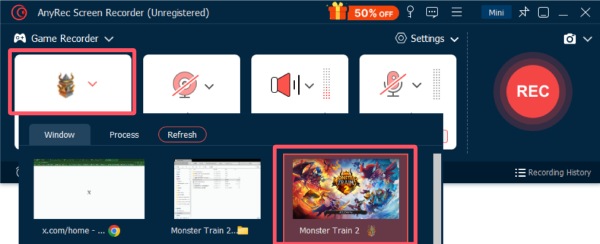
Step 2.Click the "Select the game" button to select the game you want to record.
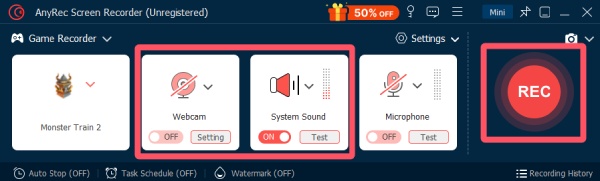
Step 3.To capture game audio during gameplay, click the "System Sound" button. Click the "Record" button to start.
Other Options for Game Audio Capture Apart from OBS
Actually, there are other tools available for capturing game audio, like OBS Studio. For different scenarios and requirements, this section provides you with several reliable game audio recording tools, allowing you to record game audio at the professional level of OBS Studio.
1. Audacity
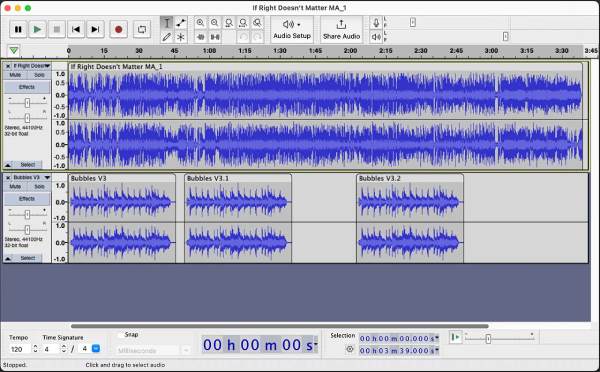
As an open-source professional audio recording and editing software, Audacity can easily assist you in recording game audio like OBS. You don't need to worry about its recording performance, as it can be said to be the most trusted audio recording software over the years. At the same time, it also allows you to edit the recorded game audio. It is undoubtedly an excellent choice for those who focus on recording game audio. The only problem is that it does not support gameplay, that is, video recording.
- Pros
- Totally open-source and free
- Allow basic audio editing
- Check the audio wave of the game audio
- Cons
- Not specially designed for game recording
- No built-in video capture
- The interface may feel dated for new users
2. Bandicam
Bandicam is a lightweight screen recorder for Windows that supports high-quality audio capture alongside gameplay. It can also work as a game screen recorder with game sounds and microphone input together or separately. Bandicam is optimized for performance but focuses on simplicity over advanced production features.
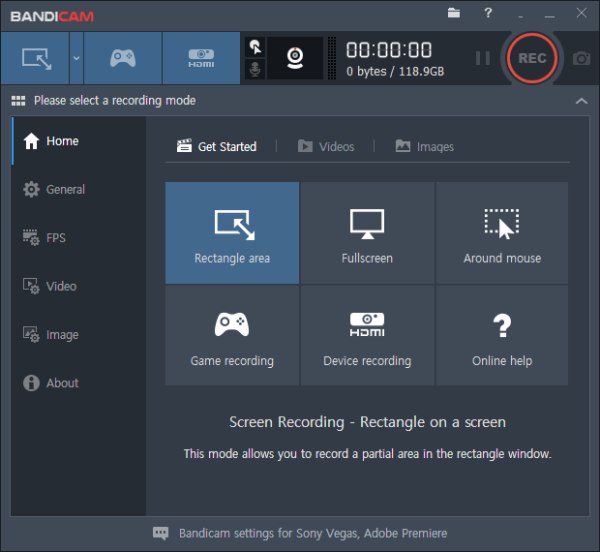
- Pros
- Simple setup and capture workflow
- Capture game audio like OBS with low CPU usage
- Separate audio track options
- Cons
- Paid license required for full features
- Watermark on the free version
- Limited advanced editing tools
3. NVIDIA ShadowPlay (NVIDIA Share)
Perhaps beyond your imagination is that NVIDIA is not only proficient in the production of graphics cards and the design of accompanying software, but also NVIDIA ShadowPlay is a professional software that it has explicitly launched for game recording needs. As long as you have an NVIDIA graphics card, you will find that it is entirely free to use. Whether it's gameplay recording or game audio recording with OBS Studio, you will be pleasantly surprised to find that NVIDIA ShadowPlay can offer excellent results.
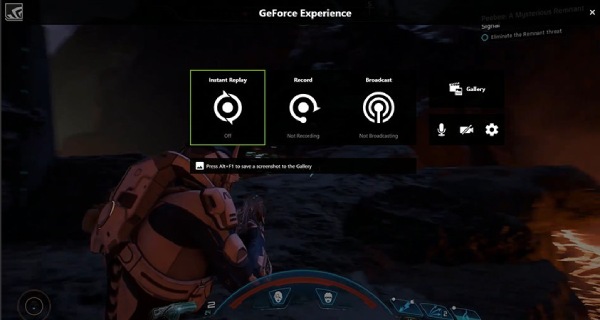
- Pros
- Minimal performance overhead
- Easy in-game recording controls
- Integrated with GeForce Experience
- Cons
- Only for NVIDIA hardware
- No abundant customization for game recording
- You can hardly find options for editing
4. XSplit Broadcaster
XSplit Broadcaster is a streaming and recording suite that supports dedicated audio mix control. It integrates game audio, microphone layers, and filters for customized results. So, it can definitely be a reliable alternative to OBS Studio for game audio recording. While aimed at livestreamers, XSplit works well for local audio capture when combined with recording profiles.
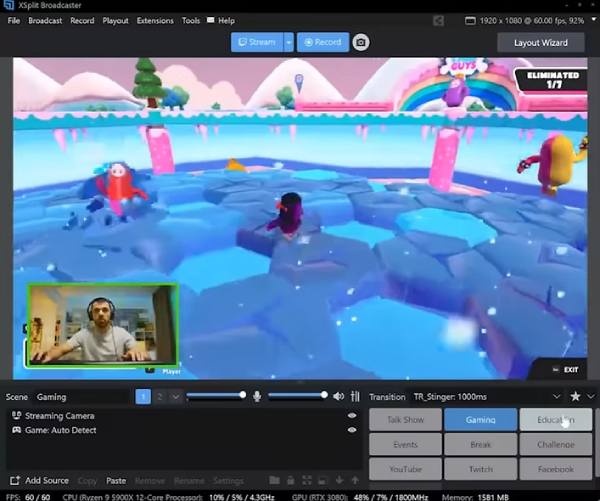
- Pros
- Mix your game audio as you want
- Select various scenarios for recording
- Integrated plugins and extensions
- Cons
- Subscription required for full features
- Can be resource-intensive
- Learning curve for beginners
5. VoiceMeeter Banana
VoiceMeeter Banana is a virtual audio mixer that allows users to route, mix, and record game audio with high flexibility. With this tool, you will find record game audio in OBS Studio's quality and manage it, which can be such an easy job. Combined with professional recording tools, it provides granular control over individual sound sources, making it a good choice for game audio recording.
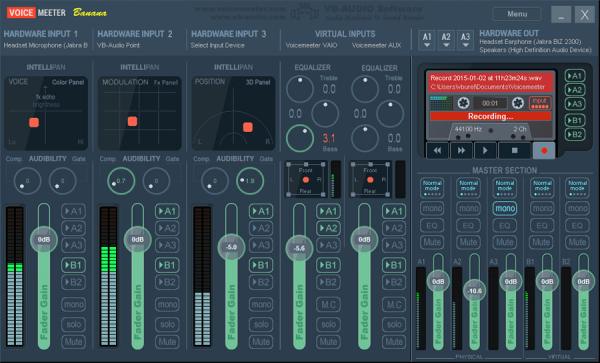
- Pros
- Highly customizable audio routing
- Supports multiple audio sources
- Works with streaming/recording software
- Cons
- Complex initial setup
- Not a standalone recorder
- Steep learning curve for new users
Conclusion
Capturing game audio in OBS Studio can be a simple task only if you know the proper methods. While it can be hard for new beginners, there are also many recording tools you can use for game recording. With a range of alternative tools available, users can choose solutions that better match their hardware, workflow, and recording goals. If you want to record game audio and have the same or even more powerful functions as OBS Studio, then you can choose AnyRec Screen Recorder to start your game recording immediately.
Secure Download
Secure Download
Related Article
About Our Author




